iPhone Shortcuts help
Fix “Photos cannot be set on the selected wallpaper” on iPhone
What does “Photos cannot be set on the selected wallpaper” mean?
It means the Shortcut tries to put an image on a Lock Screen that was not made with the Photos option. The Set Wallpaper Photo action can only change a Photos Lock Screen. To fix it, make a new Lock Screen with any photo, then select it in the Shortcut’s Set action.
Unable to Set Wallpaper Photo
Photos cannot be set on the selected wallpaper. Please select a different wallpaper.
Why it happens
Why does this error happen?
Every Lock Screen on your iPhone has a type, for example Photos, Photo Shuffle, Emoji, or Color. The Set Wallpaper Photo action can only put a new image on a Lock Screen of the Photos type. If the action points at a Lock Screen of another type, iOS stops the Shortcut and shows this error.
The action does not use the Lock Screen that is on your screen now. It uses the Lock Screen that is selected in the action. When you add a shared Shortcut, that choice often points at a Lock Screen that is not a Photos type.
- Get Contents of URL The Shortcut gets an image.
- Set Wallpaper Photo It sends the image to the selected Lock Screen.
- Photos type: iOS sets the image. Any other type: iOS shows the error.
Which wallpapers
Which wallpapers cause the error?
Any Lock Screen that you did not make with the Photos option can cause it. For example: the wallpaper that came with your iPhone, Weather and Astronomy, Emoji, Color, Photo Shuffle, People, and Live Photos. Photo Shuffle, People, and Live Photos use your own photos, but they are not the Photos type.
- Photos One still photo that you pick. This is the type the Shortcut needs. Works
- Wallpapers from Apple For example, the wallpaper that came with your iPhone. Shows the error
- Weather & Astronomy Wallpapers that show live weather or space. Shows the error
- Emoji A pattern made of emoji. Shows the error
- Color A background in one color. Shows the error
- Photo Shuffle & People They use your photos, but they are not the Photos type. Shows the error
- Live Photos A photo that can move when you wake your iPhone. Shows the error
These are examples. Apple can add or rename wallpaper types in iOS updates. If a Lock Screen was not made with the Photos option, expect the error.
How to fix it
How do I fix the error?
Make a new Lock Screen with the Photos option and any still photo. Then edit the Shortcut, tap the blue word Wallpaper in the Set action, and select the new Lock Screen. Run the Shortcut again. It takes about one minute.
-
Step 1 Make a Lock Screen with the Photos option
- Wake your iPhone. Touch and hold the Lock Screen until you see Customize.
- Tap +, then tap Photos.
- Pick any still photo. The Shortcut replaces it later.
- Tap Add, then tap Set as Wallpaper Pair.
No + button? Touch and hold the Lock Screen again, then enter your passcode. You can also go to Settings › Wallpaper › Add New Wallpaper.
Tap +, then Photos. Not Photo Shuffle. -
Step 2 Select the photo Lock Screen in the Shortcut
- Open the Shortcuts app. Touch and hold your wallpaper Shortcut, then tap Edit.
- Find the action that reads Set Wallpaper to … for Lock Screen.
- Tap the blue word Wallpaper.
- Select the photo Lock Screen from step 1, then tap ✓.
Did the alert appear? Tap Show. It opens the Shortcut at this action. After you select the Lock Screen, the blue word can change to a name like Wallpaper 2.
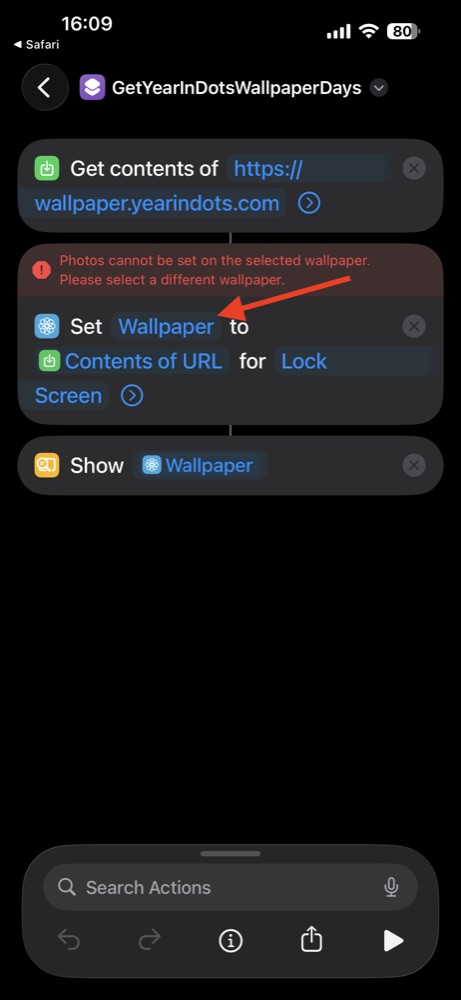
Tap the blue word Wallpaper 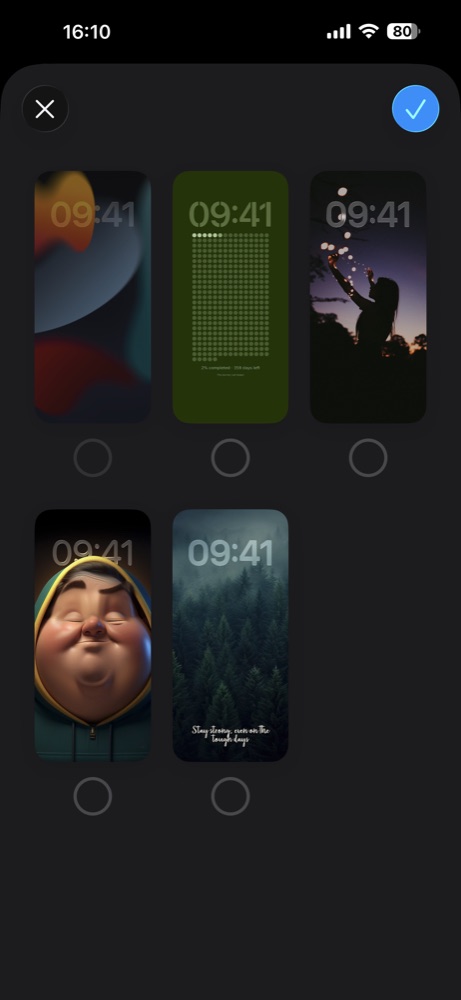
Select the photo Lock Screen, then tap ✓ -
Step 3 Run the Shortcut again
- Tap ▶ at the bottom of the screen.
- The error is gone, and the Shortcut sets the new image.
- Lock your iPhone to see the new wallpaper.
Your automation runs the same Shortcut, so it now uses the photo Lock Screen too.
Using Year in Dots? On your iPhone, run it from here: Run Days Run Months
Steps 2 and 3 in a 25-second screen recording.
More fixes
Still not working?
The Shortcut ran, but my Lock Screen did not change
The Shortcut changes the Lock Screen that is selected in the Set action. This is not always the Lock Screen on your screen now.
Touch and hold the Lock Screen and swipe through your Lock Screens. When you find the new image, tap it to use it.
I use Focus modes with their own Lock Screens
A Focus can bring up its own Lock Screen when it turns on. The Shortcut still changes only the Lock Screen that is selected in the Set action.
To see the new image during a Focus, link the photo Lock Screen to that Focus. Touch and hold the Lock Screen, then tap Focus near the bottom of the wallpaper.
I want the Home Screen to change too
In the Set action, tap the blue words Lock Screen. Select Home Screen too, then run the Shortcut again.
The Shortcut asks me before it runs
Open the Automation tab in Shortcuts and tap your automation. Select Run Immediately. Turn off Notify When Run if you do not want a message each time.
If the Shortcut shows a preview and waits for you, tap the arrow at the end of the Set action. Turn off Show Preview.
The error came back later
The Set action points at the Lock Screen that you selected. If you delete that Lock Screen, make a new photo Lock Screen and select it again. Do step 1 and step 2 one more time.
Does this fix work for other wallpaper Shortcuts?
Yes. The rule comes from iOS, not from one Shortcut. Any Shortcut that uses the Set Wallpaper Photo action needs a Lock Screen of the Photos type, so the same steps work for all of them.
Year in Dots
Want a wallpaper that updates itself?
Year in Dots is a free Lock Screen wallpaper that shows the year as dots. Each morning, one more dot turns white, and today’s dot glows orange.
A Shortcut gets the new image, and a daily automation runs it. You already made a photo Lock Screen, so step 1 of the setup is done.
- Free
- No app
- No account
- iPhone only