Setup guide · About 5 minutes
Set up your year progress wallpaper in 4 steps
Year in Dots is a free iPhone Lock Screen wallpaper that shows the year as dots and updates itself every morning with an iOS Shortcut.
Each morning, one more dot turns white, and today's dot glows orange. You set it up one time, and then it runs by itself. It is free, with no app to install, no account, and no ads.
- Device
- An iPhone with a recent version of iOS
- App
- The Shortcuts app, which comes with iOS
- Photo
- Any photo, or our free starter image
- Time
- About 5 minutes, one time only
Before you start
Choose your style
There are two styles. Both fill in one dot each morning. Each style has its own Shortcut, so pick the one you want to see on your Lock Screen.
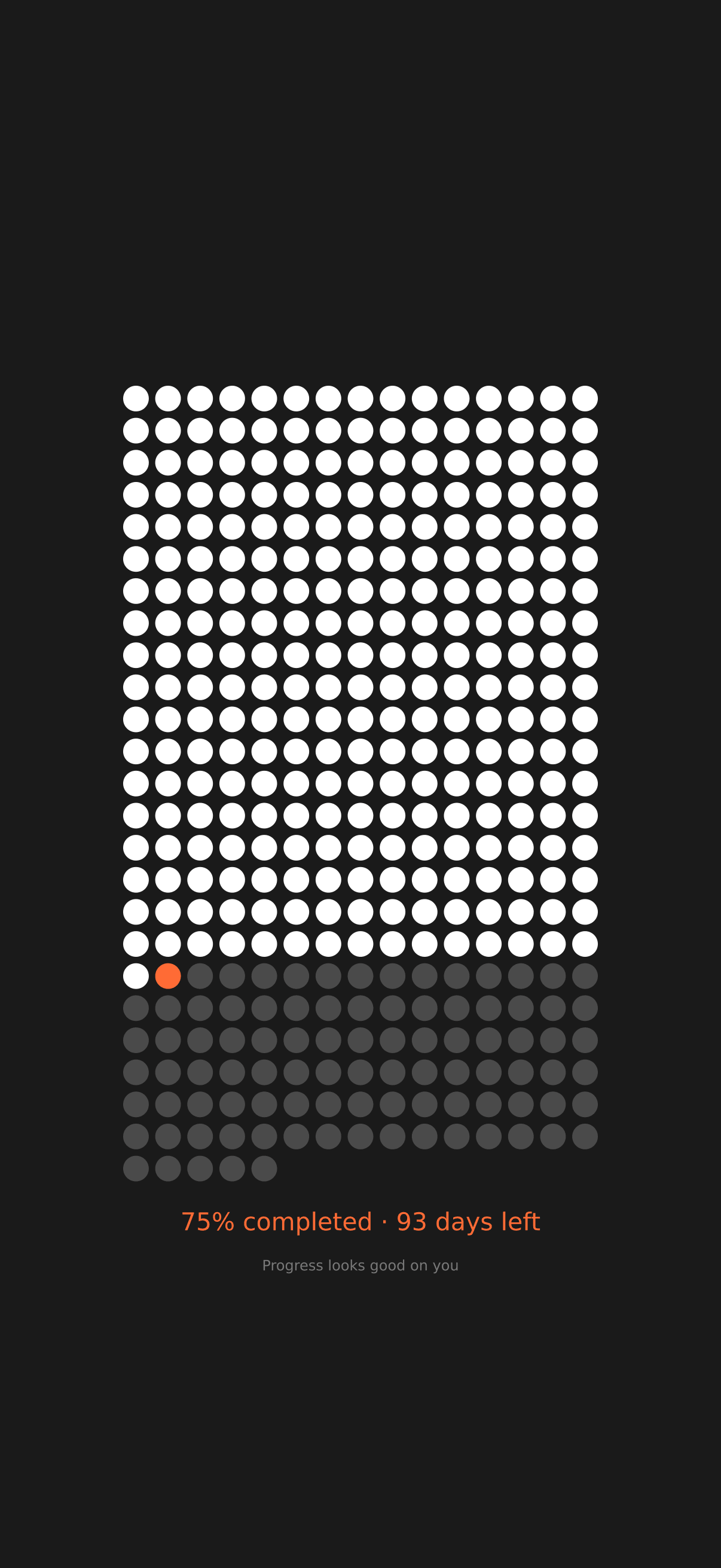
Days
365 dots. One for every day.
The whole year in one grid. Each morning, one more dot turns white and today glows.
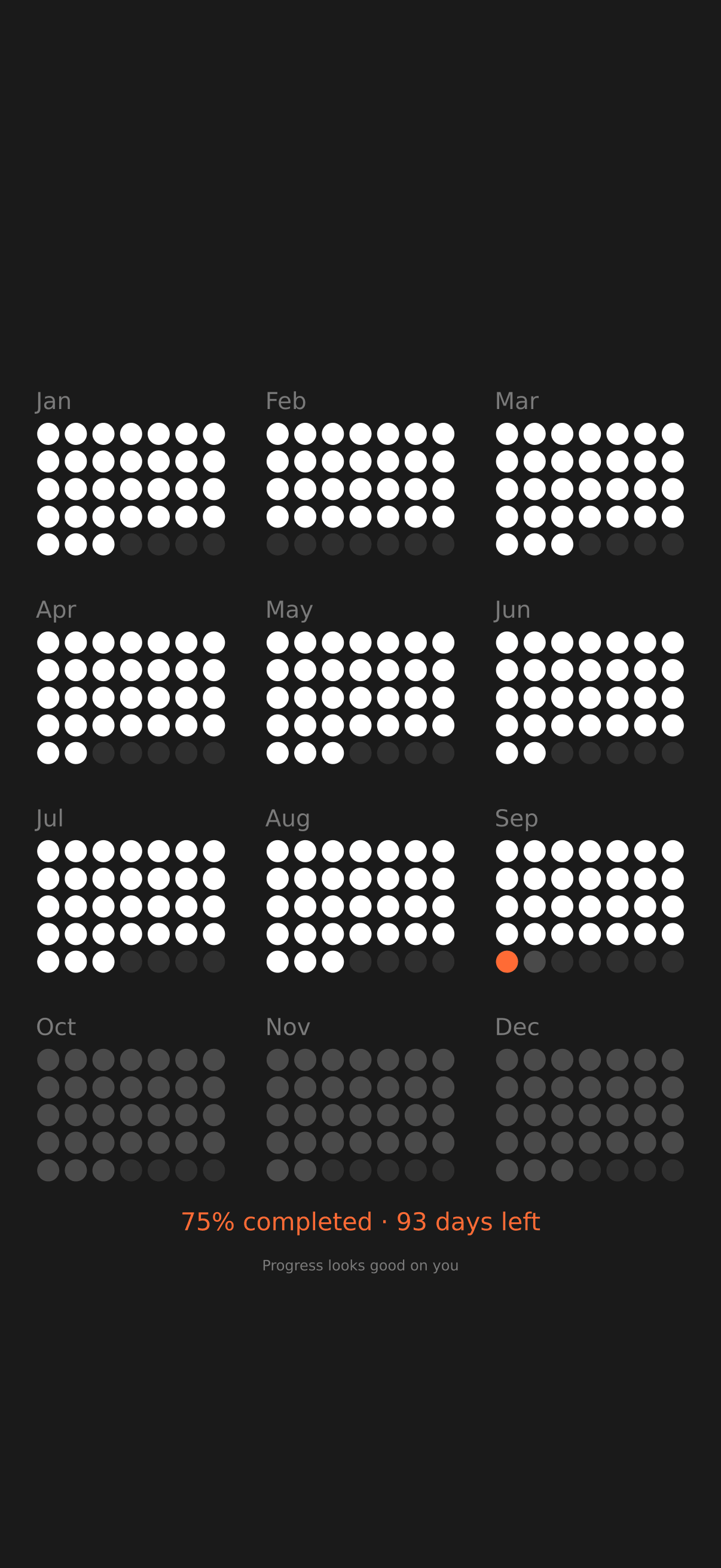
Months
Twelve calendars. One glance.
The year split into months, so you always know where you stand in this one.
The setup
Do these 4 steps in order, on your iPhone. You only do them one time.
Step 1 of 4 Do this first
Make a photo Lock Screen
A Shortcut can only change a Lock Screen that uses a photo. Make one first, so the Shortcut has a place to put your dots. This step prevents the most common setup error.
- Save the starter image to Photos, or use any photo you like.
- On your Lock Screen, touch and hold, then tap +.
- Tap Photos, then choose the starter image.
- Tap Add, then tap Set as Wallpaper Pair.
Why a photo? Lock Screens like Astronomy, Emoji, or the default iOS wallpaper do not use a photo, and iOS does not let Shortcuts change them. If the Shortcut points at one of them, you see the error “Photos cannot be set on the selected wallpaper”.
Free starter image
Any photo works. The Shortcut replaces it each morning.
Step 2 of 4
Add the Shortcut
The Shortcut gets today's image for your exact screen size and puts it on your Lock Screen. Pick the Shortcut for the style you want: Days or Months.
- Open the Shortcut link on your iPhone.
- Tap Add Shortcut.
- The Shortcut is now in your Shortcuts app.
The Days Shortcut is called GetYearInDotsWallpaperDays. The Months Shortcut
is called GetYearInDotsWallpaperMonths. You look
for this name in steps 3 and 4.
Pick one Shortcut
Open the link on your iPhone. On a Mac with the same Apple Account, the Shortcut also syncs to your iPhone.
Step 3 of 4
Point it at your photo Lock Screen
The Shortcut needs to know which Lock Screen to update. You choose it one time.
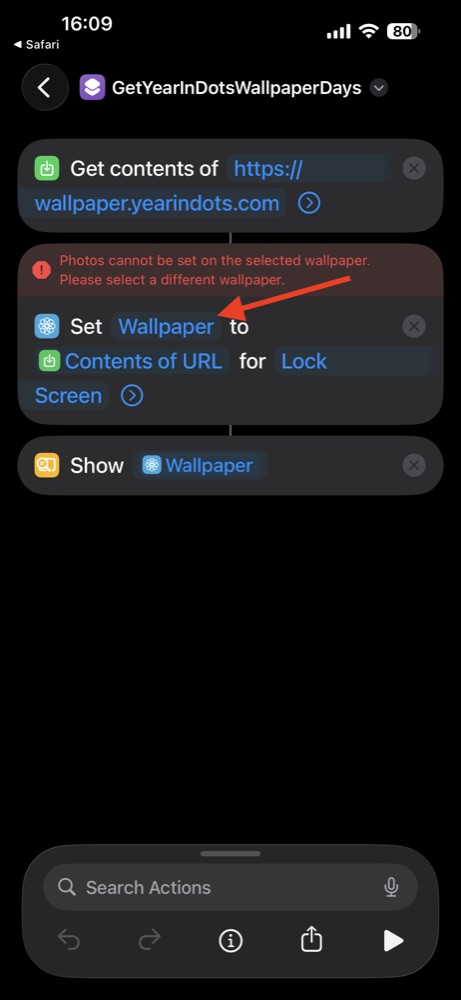
- In the Shortcuts app, touch and hold the Shortcut, then tap Edit.
- In the Set action, tap the blue word Wallpaper.
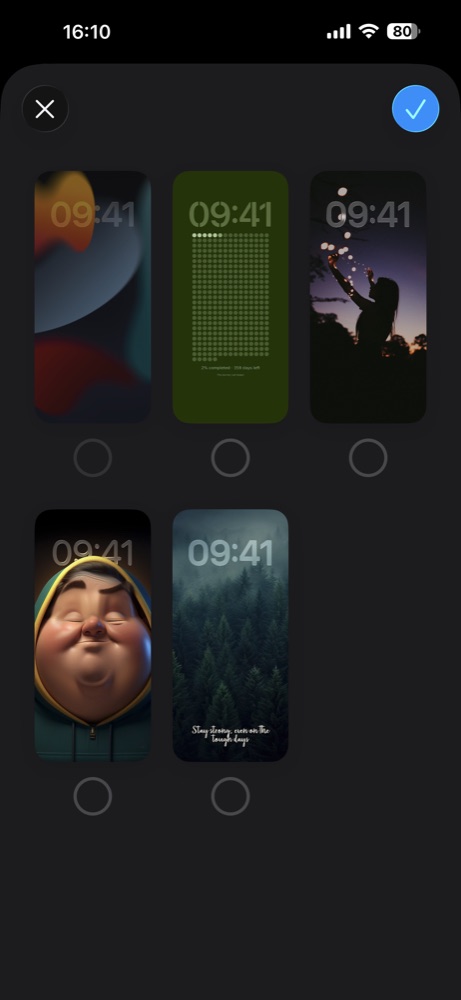
- Select the photo Lock Screen from step 1, then tap ✓.
- Tap ▶ to run the Shortcut one time. Your dots appear.
Do you see “Photos cannot be set on the selected wallpaper”? The Shortcut points at a Lock Screen without a photo. Do step 1, then select that new Lock Screen here. Read the full fix.
Step 4 of 4
Let it run every morning
A personal automation runs the Shortcut each day, so the wallpaper updates while you sleep.
- Open the Shortcuts app and tap Automation.
- Tap + (or New Automation), then tap Time of Day.
- Choose a time, like 6:00 AM, and set Repeat to Daily.
- Select Run Immediately, then tap Next.
- Select the Year in Dots Shortcut. The automation is saved.
Tip: the Shortcut needs the internet to get the new image. Turn off Notify When Run if you do not want a message each morning.
You are all set. Tomorrow morning, one more dot turns white. You do not have to do anything else.
Under the hood
How the Shortcut works
Apple does not let apps change your wallpaper. An iOS Shortcut can. The Year in Dots Shortcut has two main actions, and a personal automation runs it every day.
-
Trigger
Time of Day automation
Runs the Shortcut every morning, at the time you choose.
-
Action 1
Get Contents of URL
Gets today's image from wallpaper.yearindots.com, made for your exact screen size.
-
Action 2
Set Wallpaper
Puts the new image on the photo Lock Screen that you chose.
-
Result
A new Lock Screen
One more dot is white, and today's dot glows orange.
- What it sends
- Only your screen size, today's date, and the style you chose. There is no account and no personal information.
- Battery and data
- The image is about 50 KB, and the Shortcut runs once a day. It uses almost no battery or data.
- iPhone only
- It needs Apple's Shortcuts app to update the Lock Screen. It does not work on Android.
Troubleshooting
If something goes wrong
Most problems come from one iOS rule: a Shortcut can only change a Lock Screen that uses a photo. These answers fix the common cases.
More questions are answered in the help section. Still stuck? Email [email protected].
It says “Photos cannot be set on the selected wallpaper”
The Shortcut points at a Lock Screen that does not use a photo, for example the default iOS wallpaper, Astronomy, or Emoji. iOS does not let Shortcuts change those.
- Make a new Lock Screen with any photo (step 1 of the guide).
- Edit the Shortcut and tap the blue word Wallpaper.
- Select the new photo Lock Screen, then run the Shortcut.
The Shortcut ran, but my wallpaper did not change
The Shortcut updates the Lock Screen that you chose in the Set action. This is not always the Lock Screen you see now. If you use Focus modes with their own Lock Screens, choose the one you see most.
The Shortcut also needs the internet to get the image. Run it by hand one time. If it shows an error, the message tells you what to fix.
The automation asks me before it runs
Open the Automation tab and tap your automation. Select Run Immediately. Turn off Notify When Run if you do not want a message each morning.
Want a hand?
Prefer to be guided
The interactive guide on the home page shows the same 4 steps, one screen at a time. On a computer, it shows QR codes that you scan with your iPhone.